
Recommendations
Recommendation carousels for your store: logics, filters and rules
· 6 min read · By Ray Rodríguez, founder of Findalo
A recommendation carousel is a strip of products that shows up right where the customer makes up their mind: the product page, the cart, the home page, or a search with no results. Done right, it turns a "there's nothing else here for me" into "oh nice, I'll take this too". Done wrong, it's just noise.
In Findalo every carousel is defined with three pieces: a logic (where the products come from), optional filters (to narrow them down) and rules (to combine conditions). This post shows what you can build — with real screenshots of how it looks in the store.
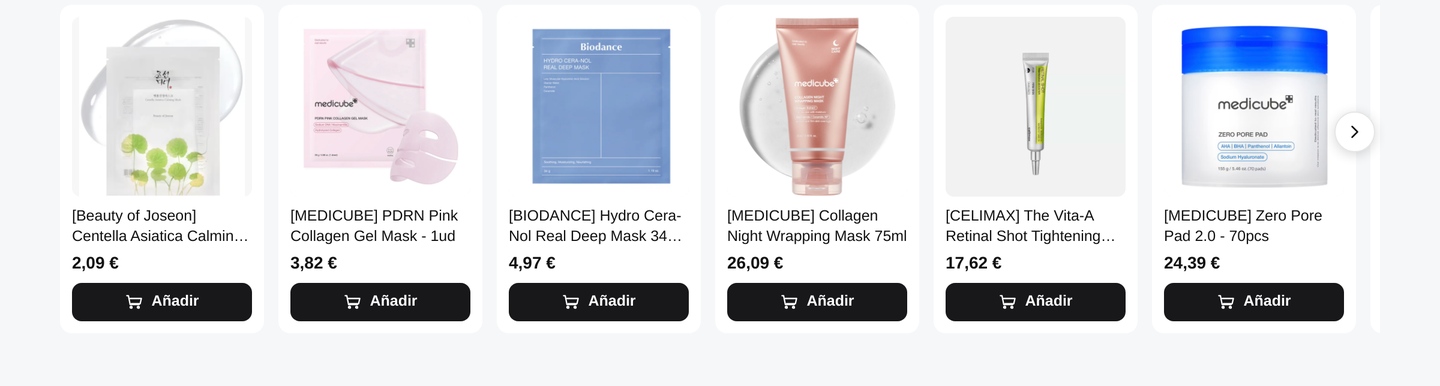
1. The logic: where the products come from
It's the first thing you pick. Each logic answers a different question:
- Best-sellers — your catalog's top-selling products. The wildcard that almost never fails; perfect for the home page or for filling gaps.
- Most viewed / popular — what people look at the most, even if they don't buy as much. A good gauge of what's trending.
- Similar — products like the one the customer is currently viewing. Made for the product page.
- Bought together — what other customers took along with that product. The classic cart cross-sell.
- Recently viewed — what that customer already looked at during their session. Saves them from searching again.
- Manual selection — you pick the products by hand. For campaigns, new arrivals or anything you want to push.
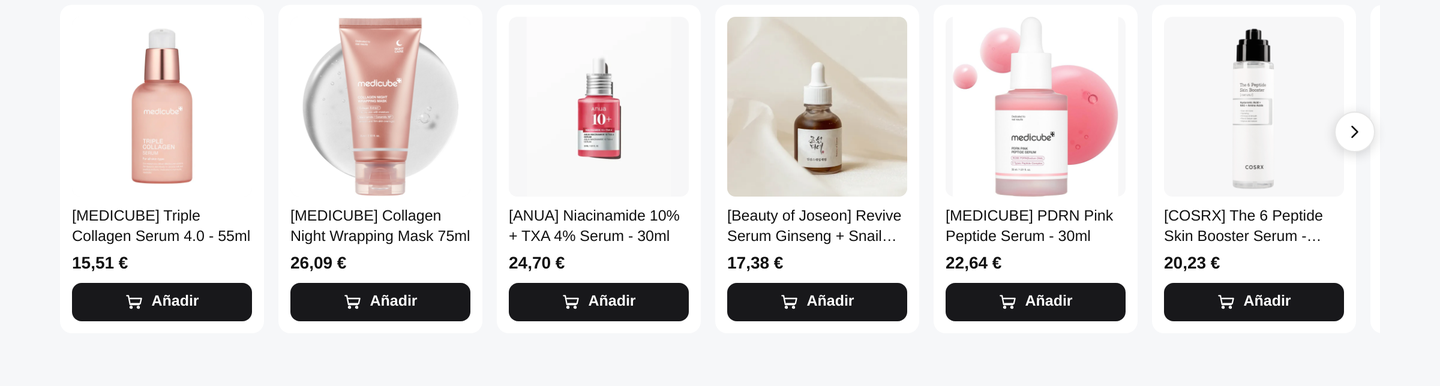
2. Narrowing the carousel with filters
On top of any logic you can add filters so the carousel only shows a certain part of the catalog. The most common ones:
- Brand — "new arrivals from a brand" or "best-sellers from X".
- Category — one carousel per product family.
- Price — a minimum, a maximum or a range. Handy for "gifts under €15".
- On sale / in stock — only what's discounted, or only what you can ship today.
- Features and ingredients — any attribute in your catalog (material, color, ingredient…).
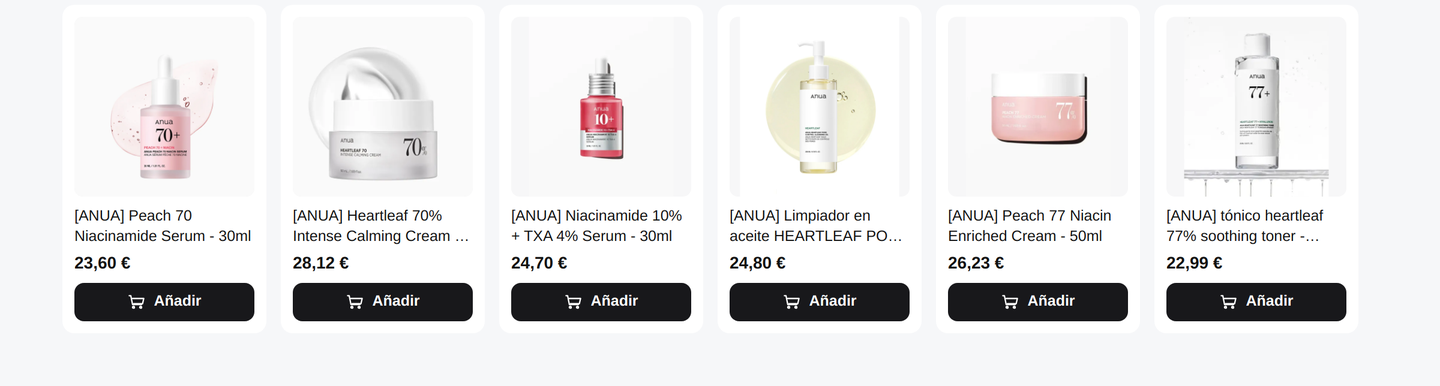
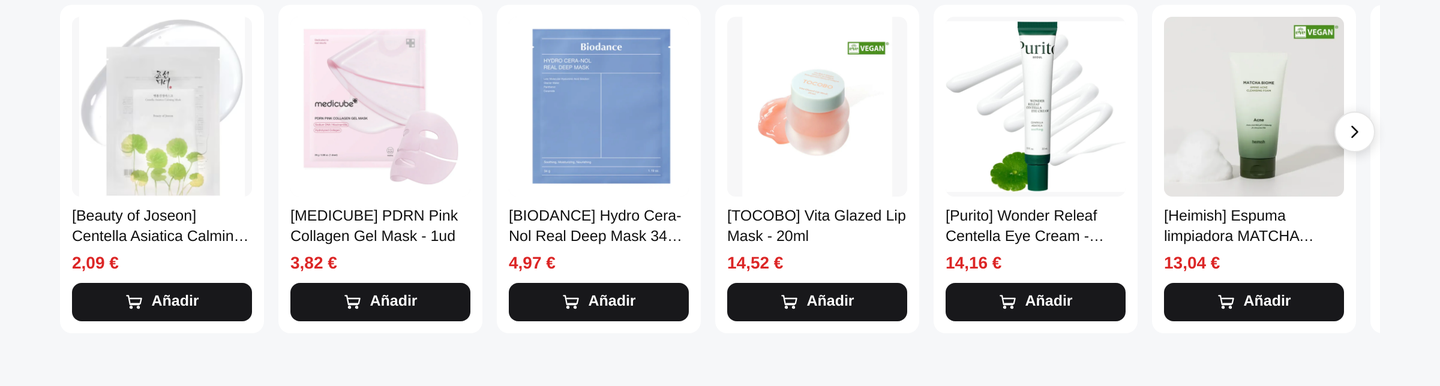
3. Rules: combining conditions (AND / OR / nested)
When a single filter isn't enough, you combine several using rules:
- AND (all) — the product meets every condition. E.g.: brand ANUA and under €25.
- OR (any) — meeting just one is enough. E.g.: brand ANUA or Beauty of Joseon.
- Nested groups — you combine the two: "(brand A or brand B) and under €20".
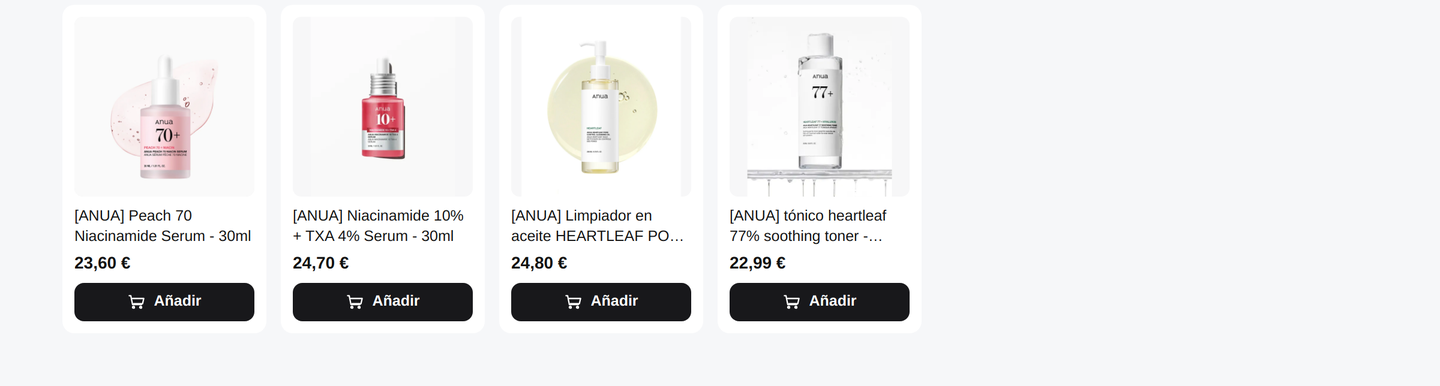
4. When the filter leaves the carousel short: the fill
If you fine-tune the filters too much, you might end up with very few products — or none. That's what the fill switch is for:
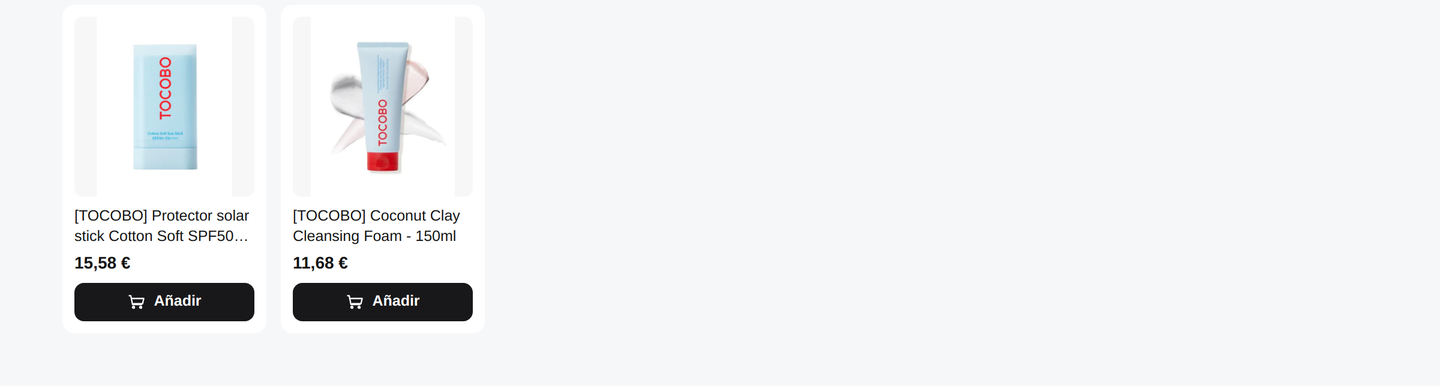
- No fill — the carousel shows only the real matches. If there are two, two show up. Honest, but it can look thin.
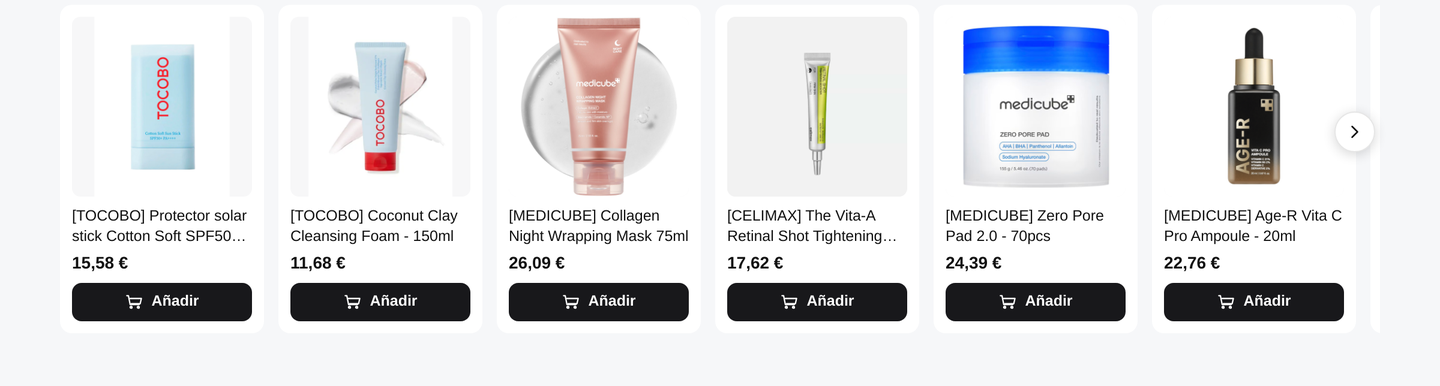
- With fill — it completes the carousel up to the limit with best-sellers that fall outside the filter. It always looks full.
Same restrictive filter (a specific brand within a specific category), the two options:
5. Where it goes: you decide, without touching code
You don't edit templates or paste code into your theme. You open your own store inside Findalo, browse it like any customer would until you reach the exact spot where you want the carousel —under the product page, inside the cart, in a gap on the home page…— and you mark it right there. Findalo remembers that spot and, on your live website, detects it and renders the carousel in its place.
In other words: it goes literally wherever you want, in any gap on any page, without relying on a developer.
As a guideline, here's which logic usually fits best in each area:
- Product page — similar and bought together.
- Cart — bought together (the last-minute up-sell).
- Home page — best-sellers or a manual campaign selection.
- Category page — best-sellers filtered by that category.
- Search with no results — best-sellers or popular, so you don't leave the customer at a dead end.
Summary
A carousel = a logic + filters + rules, plus a fill switch for when you get too picky. You place it wherever you want by marking it on your own store —without touching code— and it updates on its own with your catalog. Recommendation carousels are available from the Pro plan up.
Want to try them in your store? Get started with Findalo.
Keep reading
-
Why your agency should become a Findalo Partner
The commission is the least of it: the real value of a search engine for an agency is the development it generates — and we send it your way. Peer-to-peer collaboration and 20% recurring.
-
Doofinder vs Findalo: real pricing comparison (2026)
What each one actually costs month by month, with an example store doing 100,000 searches. Why Doofinder charges per SKU and Findalo does not.